> ## Documentation Index
> Fetch the complete documentation index at: https://openlayer.com/docs/llms.txt
> Use this file to discover all available pages before exploring further.
# Set up the gateway
> Sign in to the admin portal, connect a provider, and issue your first API key
This guide is for the **operator** running the gateway. By the end you'll have a provider connected
and an API key you can hand to an app or a teammate.
You'll need the **admin portal URL** and an **admin key**. You get both when
we set up your gateway. Don't have one yet? [Reach out to
us](mailto:support@openlayer.com) and we'll get one running for your team.
Open `https://your-gateway.example.com/admin` and enter your admin key.
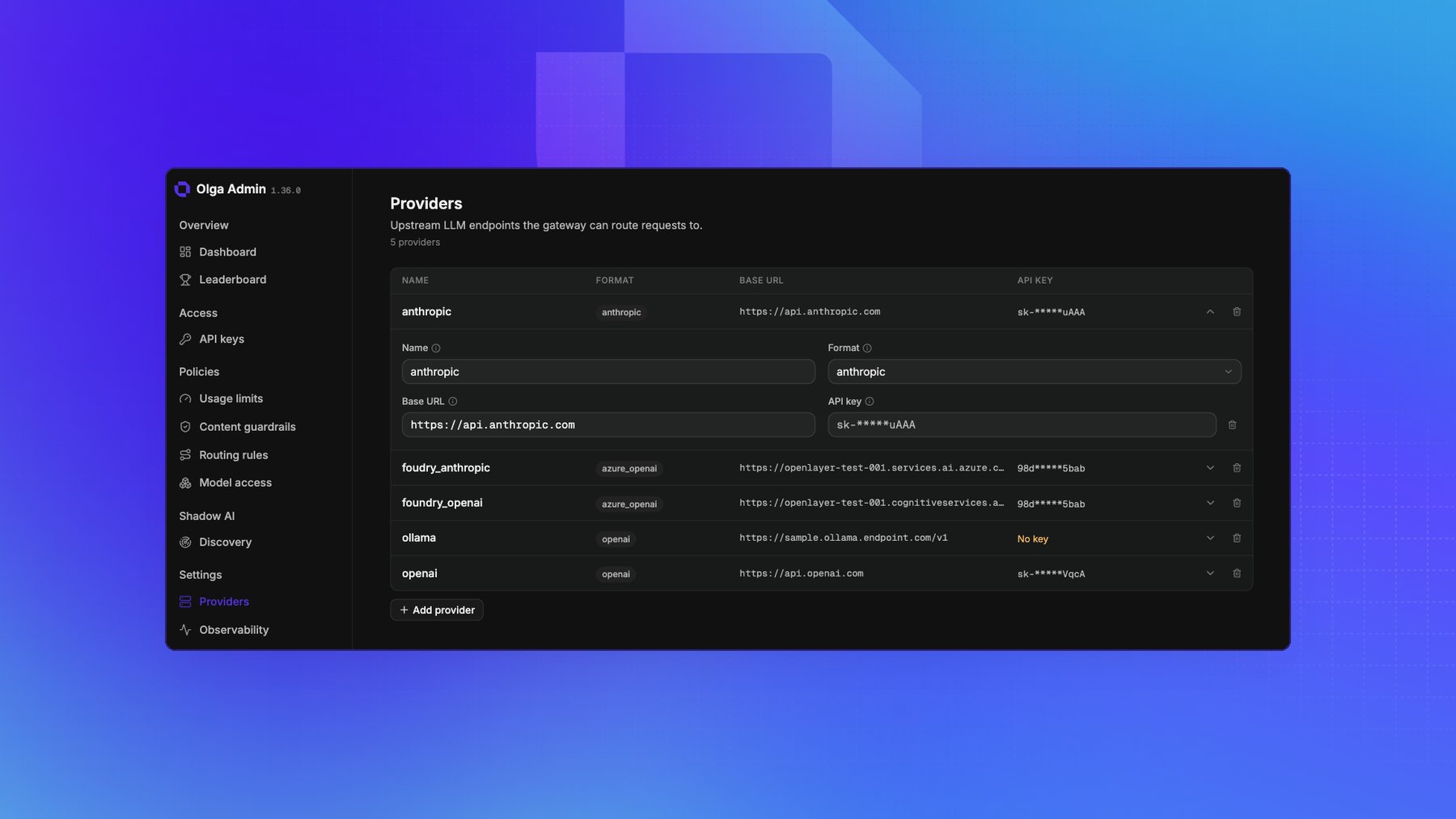
Go to **Providers** under Settings and add one:
* **Name**: a label you choose, such as `openai`.
* **Base URL**: the provider's API root, such as `https://api.openai.com`.
* **Format**: one of `openai`, `anthropic`, or `azure_openai`.
* **API key**: the provider's secret. It's encrypted before it's stored, and the page shows only
a hint of it afterwards.
For every option, including Azure and its API version, see
[Connect providers](/docs/gateway/connect-providers).
Save your changes. The gateway picks up the new provider right away, with no restart.
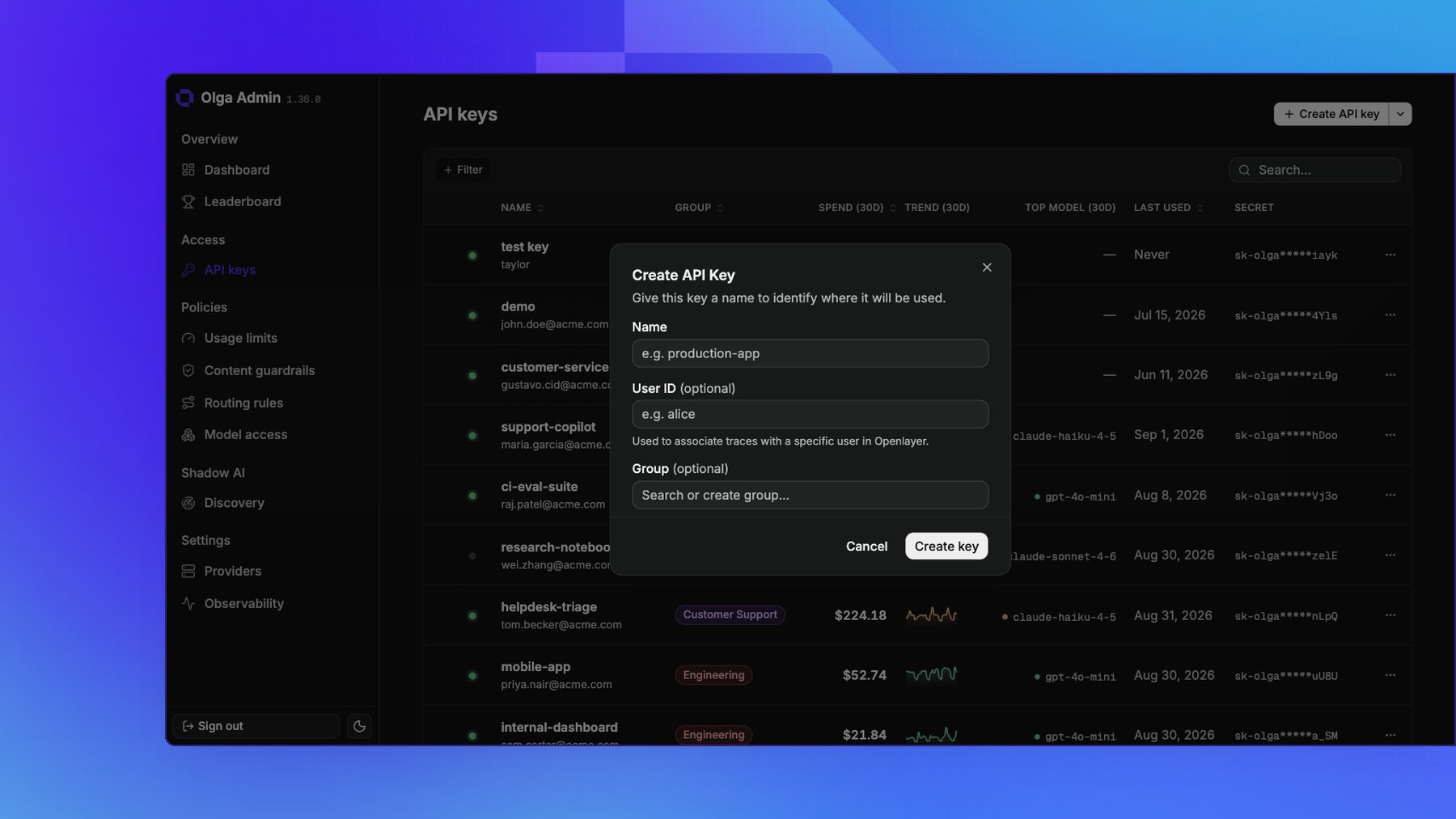
 Go to **API keys** and create a key. You can give it a name, and attach a user or a group so you
can track and govern it later.
Copy the key when it appears. It's shown **only once** and starts with `sk-olga-`. Store it
somewhere safe.
Go to **API keys** and create a key. You can give it a name, and attach a user or a group so you
can track and govern it later.
Copy the key when it appears. It's shown **only once** and starts with `sk-olga-`. Store it
somewhere safe.
 ## Hand it off
Give the developer two things:
* The **gateway base URL**, such as `https://your-gateway.example.com/v1`.
* The **API key** you just created.
That's everything they need to send traffic. Point them at
[Make your first request](/docs/gateway/make-your-first-request).
## Where configuration lives
Almost everything you administer lives in the portal and takes effect at runtime, with no redeploy:
| Portal page | What it holds |
| - | - |
| **Providers** | Upstreams and their API keys |
| **Observability** | Connected Openlayer workspaces and destinations |
| **API keys** | The keys your apps send |
| **Usage limits**, **Content guardrails**, **Routing rules**, **Model access** | The policies enforced on each request |
Only deployment-level settings are environment variables on the gateway host: the admin key, the
encryption key that protects stored secrets, and feature toggles. Those are set at deploy time, so
coordinate with us to change one.
Older deployments seeded providers, routing, and observability from a
`config.yaml` file. That file is now a one-time import, read on first boot and
ignored afterwards, and it will be removed. Edit these resources in the portal
instead.
## Next steps
Now that traffic can flow, decide what the gateway should enforce on it.
Cap spend, requests, or tokens per key, user, or group.
Block or redact PII, stop prompt injection, and screen for unsafe content.
This documentation is built and hosted on [Mintlify](https://mintlify.com), a developer documentation platform.
## Hand it off
Give the developer two things:
* The **gateway base URL**, such as `https://your-gateway.example.com/v1`.
* The **API key** you just created.
That's everything they need to send traffic. Point them at
[Make your first request](/docs/gateway/make-your-first-request).
## Where configuration lives
Almost everything you administer lives in the portal and takes effect at runtime, with no redeploy:
| Portal page | What it holds |
| - | - |
| **Providers** | Upstreams and their API keys |
| **Observability** | Connected Openlayer workspaces and destinations |
| **API keys** | The keys your apps send |
| **Usage limits**, **Content guardrails**, **Routing rules**, **Model access** | The policies enforced on each request |
Only deployment-level settings are environment variables on the gateway host: the admin key, the
encryption key that protects stored secrets, and feature toggles. Those are set at deploy time, so
coordinate with us to change one.
Older deployments seeded providers, routing, and observability from a
`config.yaml` file. That file is now a one-time import, read on first boot and
ignored afterwards, and it will be removed. Edit these resources in the portal
instead.
## Next steps
Now that traffic can flow, decide what the gateway should enforce on it.
Cap spend, requests, or tokens per key, user, or group.
Block or redact PII, stop prompt injection, and screen for unsafe content.
This documentation is built and hosted on [Mintlify](https://mintlify.com), a developer documentation platform.