> ## Documentation Index
> Fetch the complete documentation index at: https://openlayer.com/docs/llms.txt
> Use this file to discover all available pages before exploring further.
# Environment Variables
> Learn how to use workspace and project environment variables.
Environment variables allow you to securely store API keys and other sensitive configuration values.
These variables are used in [development mode](/docs/development/overview), when running your scripts,
for [LLM-based tests](/docs/tests/catalog/l-l-m-rubric-threshold)
such as LLM-as-a-judge evaluations, and for
[Jev-as-a-judge](/docs/tests/catalog/jev-as-a-judge-threshold).
## Workspace-level environment variables
Workspace-level environment variables are shared across **all projects** in your workspace.
To set them, navigate to **Settings** → **Environment**.
### Pre-defined variables
Openlayer provides pre-defined fields for commonly used API keys:
* `OPENAI_API_KEY`
* `ANTHROPIC_API_KEY`
* `AZURE_OPENAI_API_KEY`
* `AZURE_OPENAI_ENDPOINT`
* `GOOGLE_API_KEY`
and others, which are used by popular LLM providers.
* `TYPESAFE_API_KEY` — authenticates
[Jev-as-a-judge](/docs/tests/catalog/jev-as-a-judge-threshold). Openlayer resolves
the key from the project, then the workspace, then a platform key. A platform
key still runs the test, and the rows are judged through Openlayer's TypeSafe
account. If no key resolves, the test is skipped.
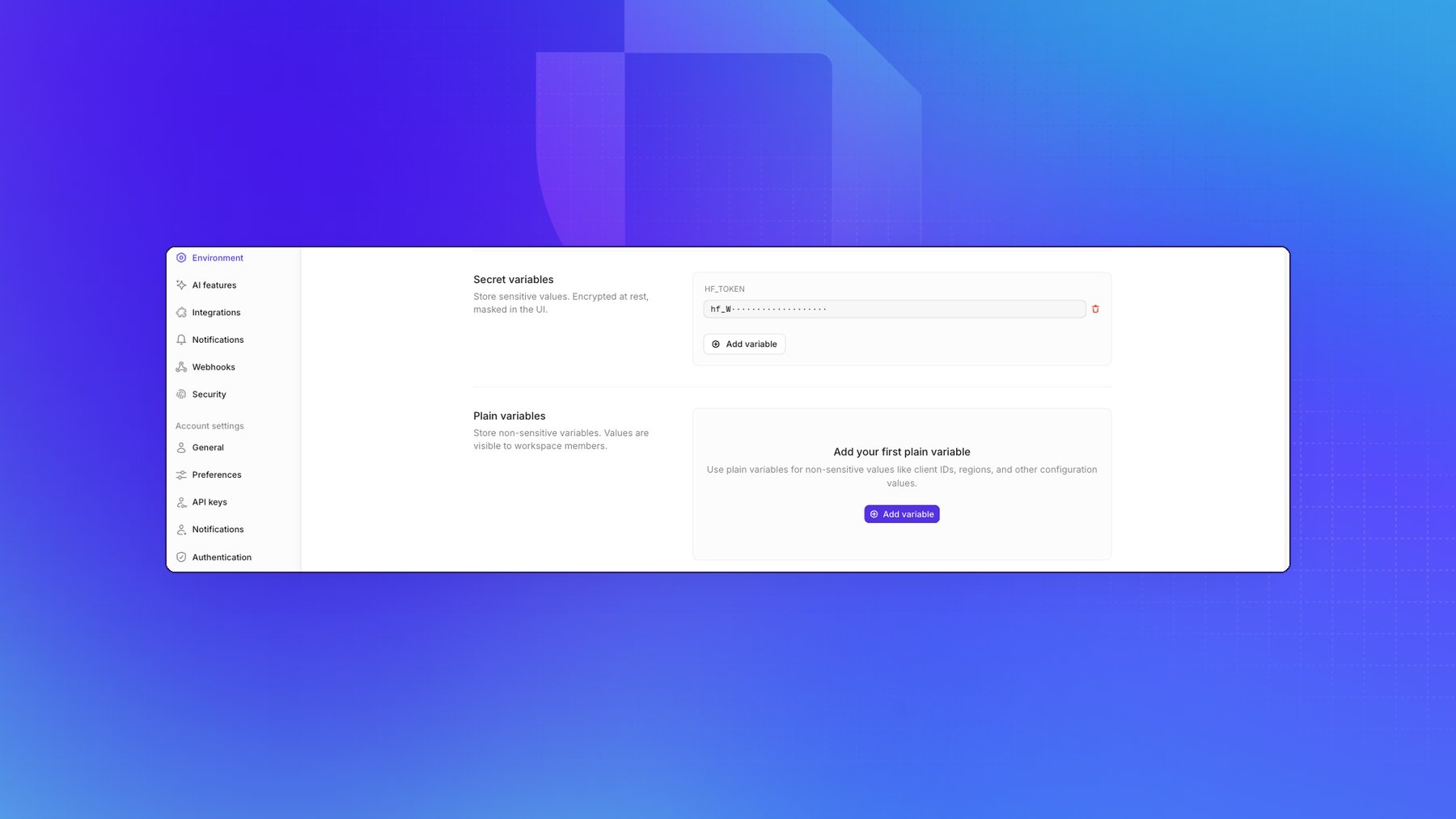
### Secret and plain variables
Beyond the pre-defined fields you can add your own variables, in two kinds:
| Kind | Stored | Visible to workspace members | Use for |
| - | - | - | - |
| **Secret** | Encrypted at rest | No, the value stays masked | API keys, tokens, passwords |
| **Plain** | As entered | Yes, the value is readable | Client IDs, regions, endpoints, other configuration |
New variables are secret unless you add them under **Plain variables**. A secret value can be
replaced but never read back, so use plain for anything a teammate may legitimately need to look up,
and keep credentials secret.
 ### Custom CA certificates
If your organization uses custom Certificate Authority (CA) certificates for secure connections,
you can add them as environment variables using the `CUSTOM_CA_CERT_*` pattern.
To add a custom CA certificate:
1. Navigate to **Settings** → **Environment** (or your project's **Settings** → **Environment** for project-specific certificates)
2. Add a new custom variable with a key starting with `CUSTOM_CA_CERT_`, followed by a descriptive suffix (e.g., `CUSTOM_CA_CERT_INTERNAL` or `CUSTOM_CA_CERT_CORPORATE`)
3. Paste your CA certificate content as the value (in PEM format)
These custom CA certificates will be automatically applied to:
* **Development mode**: Your custom certificates will be used when running scripts and code in the development mode commit environment
* **LLM evaluators**: The certificates will be trusted when running LLM-based tests and evaluations, ensuring secure connections to your LLM providers
You can add multiple custom CA certificates by creating multiple environment
variables with different suffixes (e.g., `CUSTOM_CA_CERT_1`,
`CUSTOM_CA_CERT_2`, etc.). All certificates matching the `CUSTOM_CA_CERT_*`
pattern will be trusted.
## Project-level environment variables
Project-level environment variables work the same way as workspace-level ones,
but are **specific to a single project**.
They are only used during development mode runs, LLM-based tests, and Jev-as-a-judge
tests within that project.
To set them, open your project and navigate to **Settings** → **Environment**. The page
manages variables that are scoped to this project, in the same three sections as the
workspace page: **Pre-defined variables**, **Secret variables**, and **Plain variables**.
Use **Add variable** to add one — an empty section reads
**Add your first secret variable**.
A pre-defined key that already has a workspace-level value carries an
**INHERITED FROM WORKSPACE** badge on the project page. You can override an
inherited variable by setting a different value at the project level.
## Verifying a provider key
The **Environment** page stores keys but doesn't verify them. To check that a key
reaches its provider, open your project and go to **Settings** → **LLM-as-a-judge**,
which holds the defaults for LLM-based tests:
* **Default LLM judge** — the default LLM for computing LLM-based metrics.
* **Default LLM** — a picker for the judge model, such as
`OpenAI / gpt-4.1-mini-2025-04-14`. Choose one of the predefined models it
lists, or type a model name and choose **Select**.
* **Test connection** — checks that Openlayer can reach the selected model.
As the page notes, you add provider API keys via the workspace environment or the
project environment, so if the connection fails, review the matching key under
**Settings** → **Environment**.
This documentation is built and hosted on [Mintlify](https://mintlify.com), a developer documentation platform.
### Custom CA certificates
If your organization uses custom Certificate Authority (CA) certificates for secure connections,
you can add them as environment variables using the `CUSTOM_CA_CERT_*` pattern.
To add a custom CA certificate:
1. Navigate to **Settings** → **Environment** (or your project's **Settings** → **Environment** for project-specific certificates)
2. Add a new custom variable with a key starting with `CUSTOM_CA_CERT_`, followed by a descriptive suffix (e.g., `CUSTOM_CA_CERT_INTERNAL` or `CUSTOM_CA_CERT_CORPORATE`)
3. Paste your CA certificate content as the value (in PEM format)
These custom CA certificates will be automatically applied to:
* **Development mode**: Your custom certificates will be used when running scripts and code in the development mode commit environment
* **LLM evaluators**: The certificates will be trusted when running LLM-based tests and evaluations, ensuring secure connections to your LLM providers
You can add multiple custom CA certificates by creating multiple environment
variables with different suffixes (e.g., `CUSTOM_CA_CERT_1`,
`CUSTOM_CA_CERT_2`, etc.). All certificates matching the `CUSTOM_CA_CERT_*`
pattern will be trusted.
## Project-level environment variables
Project-level environment variables work the same way as workspace-level ones,
but are **specific to a single project**.
They are only used during development mode runs, LLM-based tests, and Jev-as-a-judge
tests within that project.
To set them, open your project and navigate to **Settings** → **Environment**. The page
manages variables that are scoped to this project, in the same three sections as the
workspace page: **Pre-defined variables**, **Secret variables**, and **Plain variables**.
Use **Add variable** to add one — an empty section reads
**Add your first secret variable**.
A pre-defined key that already has a workspace-level value carries an
**INHERITED FROM WORKSPACE** badge on the project page. You can override an
inherited variable by setting a different value at the project level.
## Verifying a provider key
The **Environment** page stores keys but doesn't verify them. To check that a key
reaches its provider, open your project and go to **Settings** → **LLM-as-a-judge**,
which holds the defaults for LLM-based tests:
* **Default LLM judge** — the default LLM for computing LLM-based metrics.
* **Default LLM** — a picker for the judge model, such as
`OpenAI / gpt-4.1-mini-2025-04-14`. Choose one of the predefined models it
lists, or type a model name and choose **Select**.
* **Test connection** — checks that Openlayer can reach the selected model.
As the page notes, you add provider API keys via the workspace environment or the
project environment, so if the connection fails, review the matching key under
**Settings** → **Environment**.
This documentation is built and hosted on [Mintlify](https://mintlify.com), a developer documentation platform.