> ## Documentation Index
> Fetch the complete documentation index at: https://openlayer.com/docs/llms.txt
> Use this file to discover all available pages before exploring further.
# Create an API key
> Learn how to create API keys to interact with Openlayer
Openlayer uses **API keys** to authenticate requests made to the platform.
You will need an API key to interact with Openlayer programmatically using the
[SDKs](/docs/api-reference/sdk/overview), the [CLI](/docs/api-reference/cli/overview), or the
[REST API](/docs/api-reference/rest/overview).
This guide shows you how to create API keys, set them to expire, rotate them, and manage them
with the API.
**Prerequisite**: you need an [Openlayer account](https://app.openlayer.com/)
to follow this guide.
## Create an API key
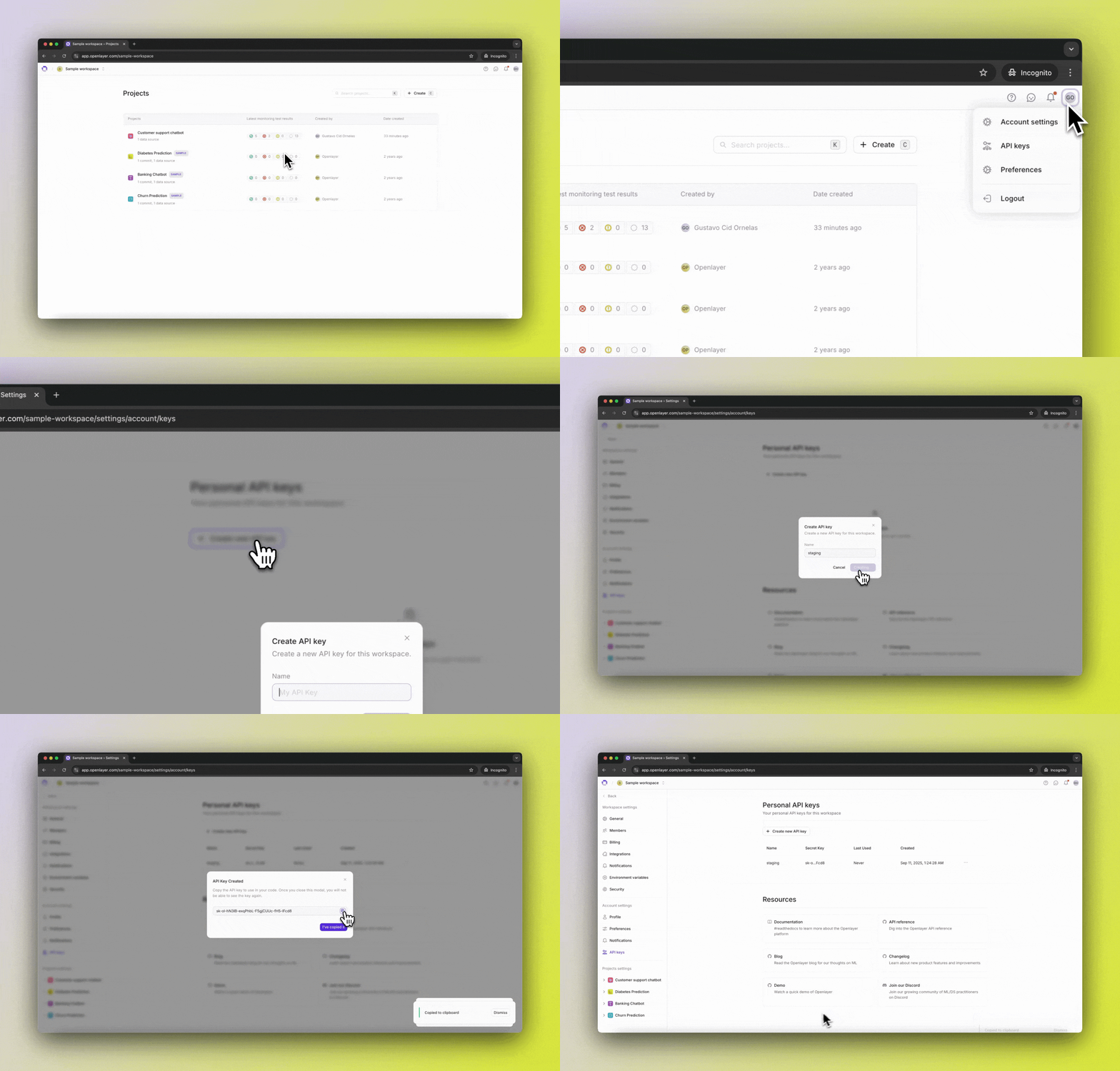
1. In the Openlayer app, click your user icon in the top right corner.
2. In the dropdown menu, click "API Keys".
3. To create a new API key, click **Create API key**, and enter a descriptive name.
4. Optionally, choose when the key expires. See [Expiry](#expiry).
5. Click **Create** to generate your key.
6. Copy the key and store it securely — you will not be able to view it again.
 ## Expiry
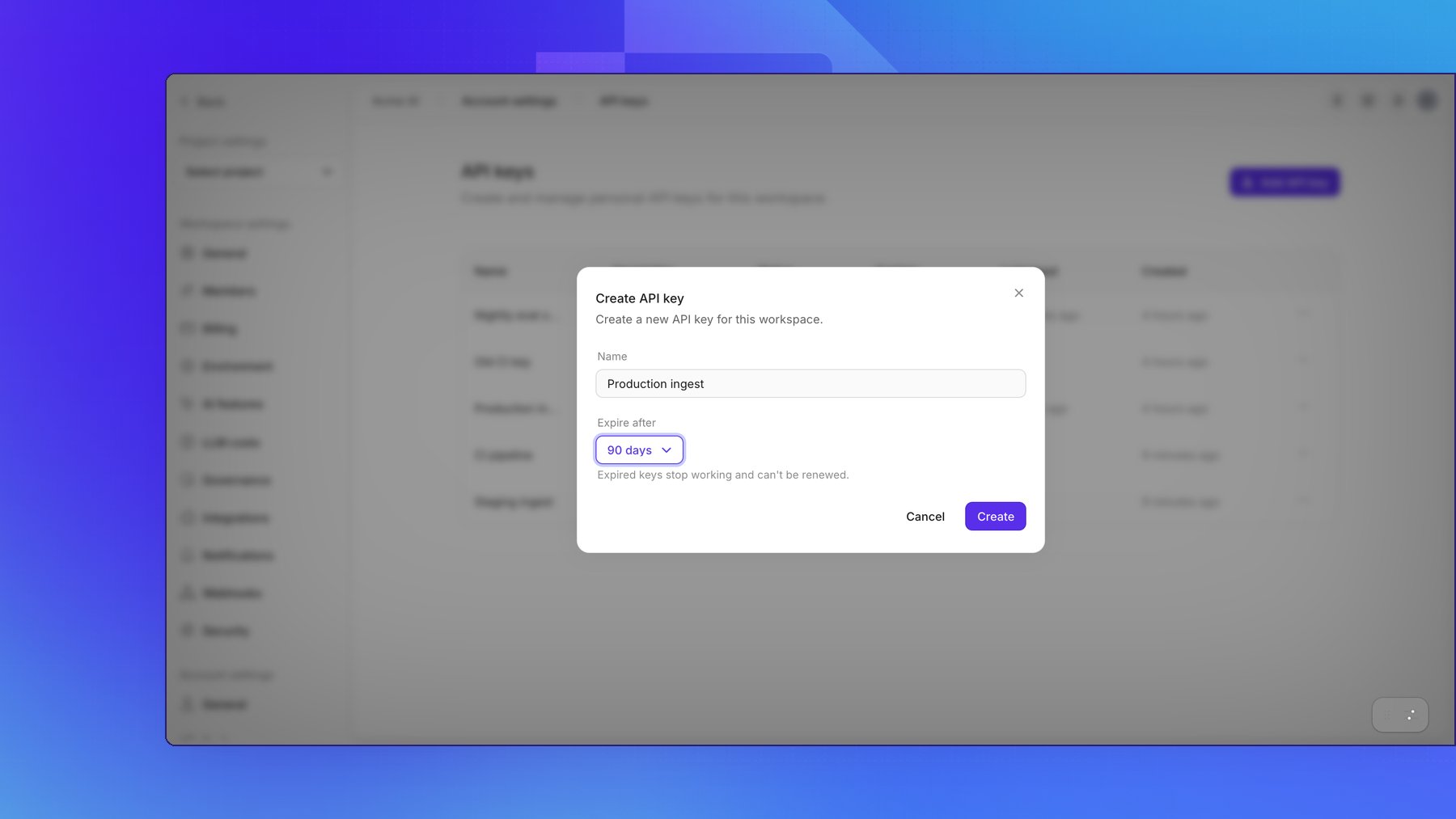
By default, API keys never expire. To limit how long a key works, choose a value in **Expire
after** when you create it: 7, 30, 60, or 90 days, or 1 year.
You can't change the expiry of an existing key. To give a key a new expiry, rotate it and choose
the new expiry in the same step. That way, extending a key's life always issues a new secret.
When a key expires, every request made with it fails with `401 Unauthorized`, and the key shows
as **Expired**. You cannot renew or rotate an expired key. Create a new key instead.
Keys created before expiry was available keep working exactly as before and never expire. To add
an expiry, rotate the key.
## Expiry
By default, API keys never expire. To limit how long a key works, choose a value in **Expire
after** when you create it: 7, 30, 60, or 90 days, or 1 year.
You can't change the expiry of an existing key. To give a key a new expiry, rotate it and choose
the new expiry in the same step. That way, extending a key's life always issues a new secret.
When a key expires, every request made with it fails with `401 Unauthorized`, and the key shows
as **Expired**. You cannot renew or rotate an expired key. Create a new key instead.
Keys created before expiry was available keep working exactly as before and never expire. To add
an expiry, rotate the key.
 ## Rotation
Rotating a key replaces its secret and shows you the new one once. The key keeps its name and,
unless you choose a new one, its expiry. You can keep the previous secret working for a grace
period of up to 7 days, so you can update your applications without downtime. The grace period
never extends past the key's expiry.
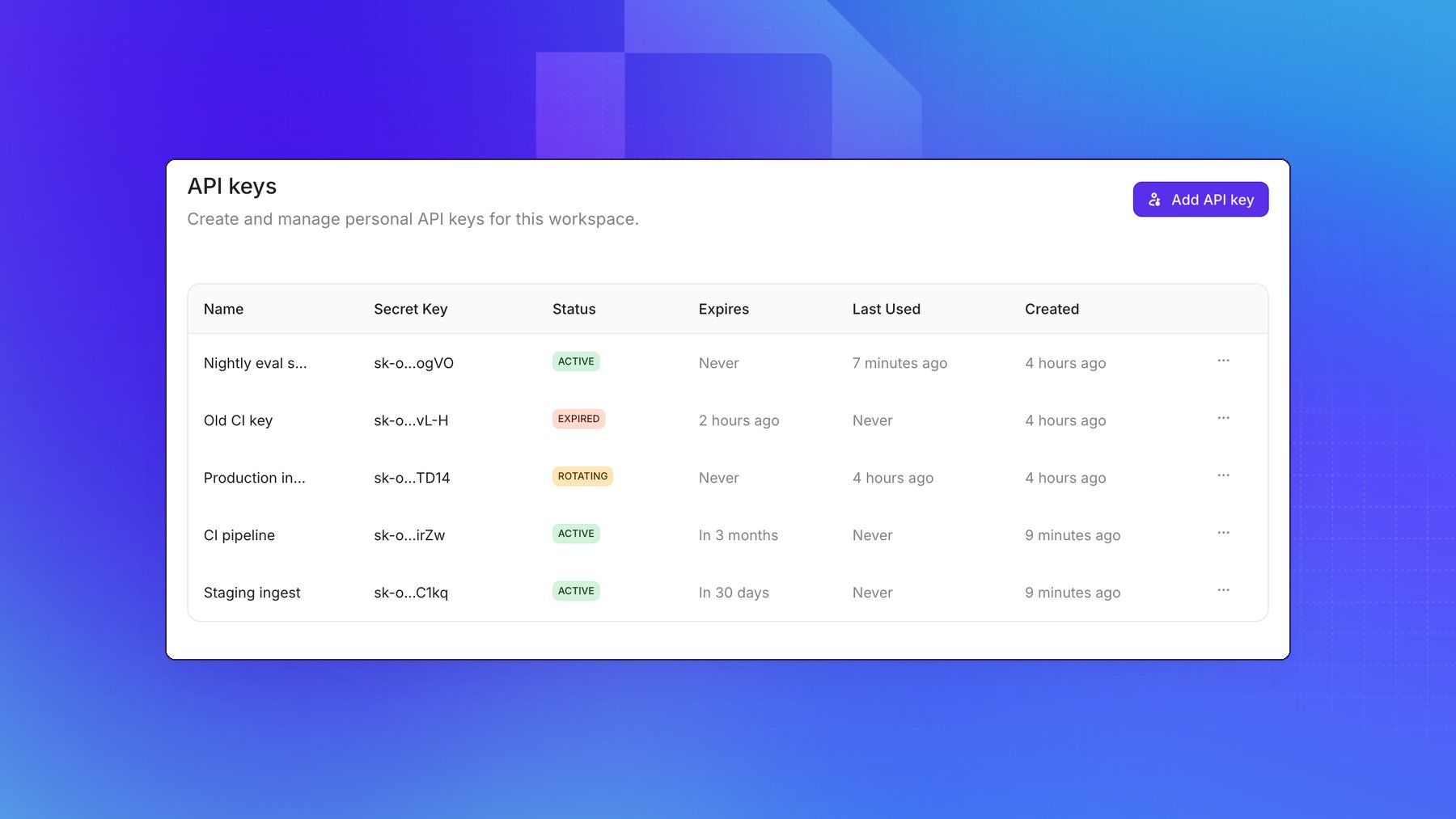
While the previous secret still works, the key shows as **Rotating**.
1. On the API keys page, open the menu on the key's row and click **Rotate now**.
2. Choose when the previous secret stops working: immediately, or after 1 hour, 24 hours, or 7
days.
3. Optionally, choose a new expiry in **Expire after**. **Keep** leaves it unchanged.
4. Click **Rotate key**, then copy the new secret. You will not be able to view it again.
Only one previous secret is kept. If you rotate a key again while its previous secret is still in
its grace period, that older secret stops working immediately.
If a key has leaked, rotate it with **Immediately** so the old secret stops
working right away.
## Rotation
Rotating a key replaces its secret and shows you the new one once. The key keeps its name and,
unless you choose a new one, its expiry. You can keep the previous secret working for a grace
period of up to 7 days, so you can update your applications without downtime. The grace period
never extends past the key's expiry.
While the previous secret still works, the key shows as **Rotating**.
1. On the API keys page, open the menu on the key's row and click **Rotate now**.
2. Choose when the previous secret stops working: immediately, or after 1 hour, 24 hours, or 7
days.
3. Optionally, choose a new expiry in **Expire after**. **Keep** leaves it unchanged.
4. Click **Rotate key**, then copy the new secret. You will not be able to view it again.
Only one previous secret is kept. If you rotate a key again while its previous secret is still in
its grace period, that older secret stops working immediately.
If a key has leaked, rotate it with **Immediately** so the old secret stops
working right away.
 ## Manage keys with the API
You can manage your API keys with the [REST API](/docs/api-reference/rest/overview) and the
[SDKs](/docs/api-reference/sdk/overview), authenticating with an existing API key. Each call acts on
your own keys in the workspace:
* [List API keys](/docs/api-reference/rest/api-keys/list-api-keys) and
[retrieve an API key](/docs/api-reference/rest/api-keys/retrieve-api-key) to check each key's
`status` and `expiresAt`. Secrets are never returned.
* [Create an API key](/docs/api-reference/rest/api-keys/create-api-key), optionally with `expiresAt`.
The secret is in the `secret` field of the response.
* [Update an API key](/docs/api-reference/rest/api-keys/update-api-key) to rename it.
* [Rotate an API key](/docs/api-reference/rest/api-keys/rotate-api-key), optionally with
`gracePeriodHours` and a new `expiresAt` (`null` for never). The new secret is in `secret`.
* [Delete an API key](/docs/api-reference/rest/api-keys/delete-api-key). All of its secrets stop
working immediately.
When you call these with an API key that expires, the keys you create or rotate can't outlive it.
If you don't send `expiresAt`, they get the same expiry as the key you're using; a later expiry,
or `null`, is rejected. This stops a leaked key from being used to mint a permanent one.
Read-only credentials, such as a read-only connection from an MCP client, can
list and retrieve keys but cannot create, change, rotate, or delete them.
### Automate rotation
Openlayer doesn't rotate keys on a schedule for you, because it has no way to hand the new secret
to your applications. Instead, run rotation from the place that stores your secrets, such as a
scheduled job or your secret manager's rotation hook:
1. Rotate the key with a grace period long enough to roll out the new secret.
2. Store the new secret from the `secret` field of the response, and redeploy.
3. The previous secret stops working when the grace period ends.
```bash theme={null}
curl --request POST \
--url https://api.openlayer.com/v1/workspaces//api-keys//rotate \
--header 'Authorization: Bearer ' \
--data '{"gracePeriodHours": 24}'
```
If you'd rather replace keys than rotate them, create a new key, deploy it, and then delete the old
one.
This documentation is built and hosted on [Mintlify](https://mintlify.com), a developer documentation platform.
## Manage keys with the API
You can manage your API keys with the [REST API](/docs/api-reference/rest/overview) and the
[SDKs](/docs/api-reference/sdk/overview), authenticating with an existing API key. Each call acts on
your own keys in the workspace:
* [List API keys](/docs/api-reference/rest/api-keys/list-api-keys) and
[retrieve an API key](/docs/api-reference/rest/api-keys/retrieve-api-key) to check each key's
`status` and `expiresAt`. Secrets are never returned.
* [Create an API key](/docs/api-reference/rest/api-keys/create-api-key), optionally with `expiresAt`.
The secret is in the `secret` field of the response.
* [Update an API key](/docs/api-reference/rest/api-keys/update-api-key) to rename it.
* [Rotate an API key](/docs/api-reference/rest/api-keys/rotate-api-key), optionally with
`gracePeriodHours` and a new `expiresAt` (`null` for never). The new secret is in `secret`.
* [Delete an API key](/docs/api-reference/rest/api-keys/delete-api-key). All of its secrets stop
working immediately.
When you call these with an API key that expires, the keys you create or rotate can't outlive it.
If you don't send `expiresAt`, they get the same expiry as the key you're using; a later expiry,
or `null`, is rejected. This stops a leaked key from being used to mint a permanent one.
Read-only credentials, such as a read-only connection from an MCP client, can
list and retrieve keys but cannot create, change, rotate, or delete them.
### Automate rotation
Openlayer doesn't rotate keys on a schedule for you, because it has no way to hand the new secret
to your applications. Instead, run rotation from the place that stores your secrets, such as a
scheduled job or your secret manager's rotation hook:
1. Rotate the key with a grace period long enough to roll out the new secret.
2. Store the new secret from the `secret` field of the response, and redeploy.
3. The previous secret stops working when the grace period ends.
```bash theme={null}
curl --request POST \
--url https://api.openlayer.com/v1/workspaces//api-keys//rotate \
--header 'Authorization: Bearer ' \
--data '{"gracePeriodHours": 24}'
```
If you'd rather replace keys than rotate them, create a new key, deploy it, and then delete the old
one.
This documentation is built and hosted on [Mintlify](https://mintlify.com), a developer documentation platform.